Chapter 10 of 14
The Event Scheduler in SAM Broadcaster Pro
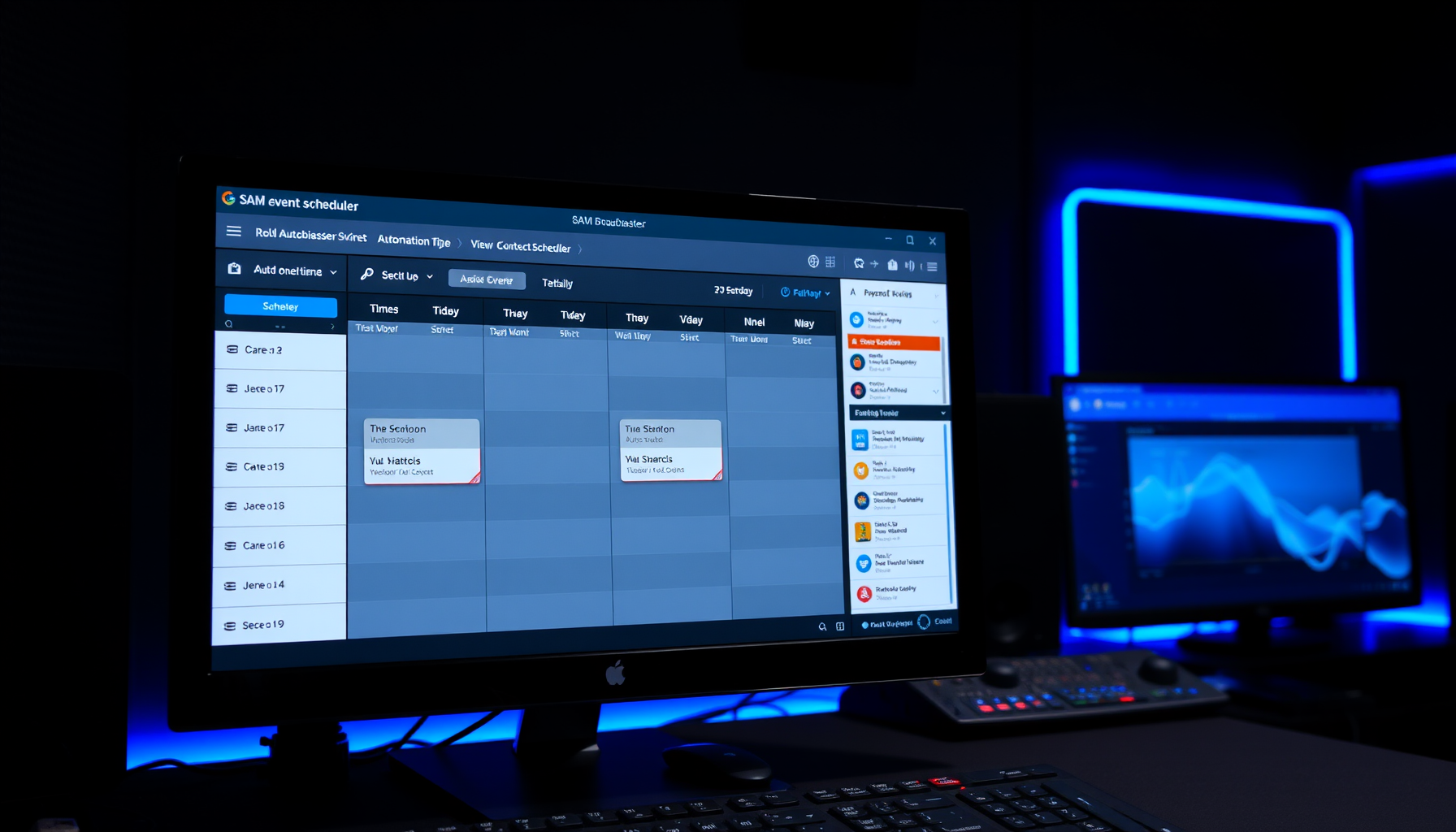
The Event Scheduler lets you trigger automated actions at specific times — adding content to the queue, starting or stopping encoders, or running scripts.
Opening the Event Scheduler
- Click Window in the menu bar
- Select Event Scheduler
Adding a Scheduled Event
- In the Event Scheduler, click the green + button to add a new event
- Choose the event type
- Set the time and days for the event to run
- You can specify multiple times and days within a single event — for example Monday through Friday at 6am, 9am and 12pm
- Save the event
Event Types
SAM Broadcaster Pro’s Event Scheduler supports the following event types:
- Add Files to Queue — adds a category, directory, specific files, a playlist or a URL to the playback queue at the scheduled time. Use this to trigger a pre-recorded show or a specific playlist at a set time.
- Execute PAL Script — runs a PAL (Playout Automation Language) script at the scheduled time. PAL scripts allow advanced automation beyond the built-in event types.
- Start/Stop Encoders — starts or stops your streaming encoders at the scheduled time. Useful for scheduled maintenance windows or switching between daytime and overnight streams.
Managing Events
- To remove an event, select it and click the minus (–) button
- To edit an event, select it and click the tools/edit button
- Events can be individually enabled or disabled without deleting them
- The scheduler shows the ETA of the next event so you can confirm upcoming actions
Scheduling Pre-Recorded Shows
To play a pre-recorded show at a fixed time each week:
- Add the show file to your SAM library
- Create an Add Files to Queue event
- Select the show file or the category it is assigned to
- Set the day and time
- Set it to repeat weekly