The Complete Guide
Build a Free 24/7 Internet Radio Station
with RadioDJ
RadioDJ is one of the most capable free playout automation tools available. This guide takes you from a blank PC to a fully automated, professional-sounding internet radio station — at no cost.
What Is RadioDJ?
RadioDJ is a free, Windows-based internet radio automation platform developed by Bogdan Patraucean and available at radiodj.ro. Unlike trial software that locks features behind a paywall, RadioDJ is genuinely free — fully functional with no listener limits, no watermarks, and no subscription required.
It uses a MySQL database to manage your music library, giving it the stability and scalability of professional broadcast systems. The interface is clean, the feature set is comprehensive, and a large community of users has built an extensive plugin ecosystem around it.
It is used by hobbyist broadcasters, community radio stations, and professional internet radio operators worldwide. If you want a capable automation platform and do not want to pay for PlayoutONE or SAM Broadcaster Pro, It is the strongest free alternative.
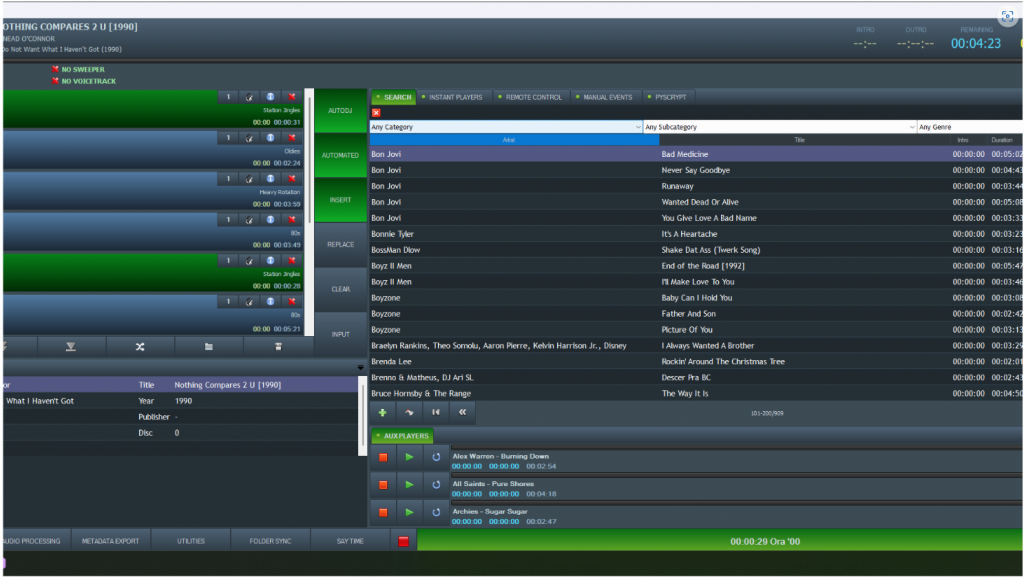
What RadioDJ Can Do
- Automated music scheduling — build rotations, set artist and title separation rules, and let the software run your station hands-free
- Cart wall — instant-play buttons for jingles, station IDs, drops, and sound effects
- Built-in encoder — stream directly to Shoutcast v1, Shoutcast v2, and Icecast servers without a separate encoding tool
- Event scheduler — trigger tracks, playlists, or actions at specific times automatically
- Request system — accept listener song requests via a built-in web interface
- Plugin architecture — extend functionality with community-built plugins for metadata, social media posting, now-playing displays, and more
- ReplayGain support — normalise track loudness across your library for a consistent sound
- Voice tracking — record presenter breaks in advance and drop them into your automated schedule
What You Need Before You Start
A few dependencies need to be in place before installation:
- Windows PC — Windows 10 or 11 recommended. The application is Windows-only.
- MySQL or MariaDB — Your music library is stored in a database. You will install this as part of the setup process. XAMPP is the easiest way to get MySQL running on a Windows PC.
- .NET Framework — The software requires .NET Framework 4.7.2 or later, which is included in Windows 10/11 or available free from Microsoft.
- A streaming server — you will need a Shoutcast or Icecast hosting account to broadcast to listeners. Many providers offer plans from a few dollars per month.
- Audio files — MP3 is the standard format. AAC, OGG, FLAC, and WAV are also supported.
Installing RadioDJ
Step 1 — Install XAMPP (MySQL)
A MySQL database is required to run the software. XAMPP is a free package that installs MySQL (MariaDB) and phpMyAdmin on Windows with minimal configuration.
- Download XAMPP from apachefriends.org and run the installer
- During installation, you only need to select MySQL and phpMyAdmin — you do not need Apache unless you want the web request system
- Open the XAMPP Control Panel and click Start next to MySQL
- Set MySQL to start automatically with Windows so it is always running on startup
Step 2 — Download and Install RadioDJ
- Go to radiodj.ro and download the latest stable version of RadioDJ
- Run the installer and follow the on-screen steps — the default installation path is fine
- When prompted to configure the database connection, enter:
- Server:
localhost - Port:
3306 - Username:
root - Password: leave blank (XAMPP default) or whatever you set
- Server:
- The database will be created automatically on first run
Step 3 — First Launch and Library Setup
- On first launch, the library will be empty
- Go to Settings → Directories and add the folders where your music is stored
- Click Update Library — It will scan your folders and import all audio files into the database, reading ID3 tags for artist, title, and album information
- Let the scan complete. Large libraries can take several minutes
- Once imported, browse your library in the main window to confirm tracks are showing correctly
Setting Up Rotations
Rotations control which tracks play and in what order. Unlike a simple shuffle, rotations let you build structured programming — mixing music categories, sweepers, and jingles in a defined pattern.
- Go to Settings → Categories and create categories for your music (e.g. “Current”, “Recurrent”, “Gold”, “Jingles”)
- Select tracks in your library and assign them to the appropriate category using the right-click menu
- Go to Settings → Rotations and build your rotation pattern — for example: Current, Current, Recurrent, Gold, Jingle, repeat
- Set artist separation (how many tracks must play before the same artist repeats) and title separation under Settings → Rules
- Enable Auto DJ in the main window — The software will now play tracks automatically according to your rotation
Configuring the Built-In Encoder
It can stream directly to your Shoutcast or Icecast server without a separate encoder application.
- Go to Settings → Encoders
- Click Add and choose your server type (Shoutcast v1, Shoutcast v2, or Icecast)
- Enter your server details:
- Server address (your streaming host’s IP or hostname)
- Port number
- Password
- Stream name and description
- Set your bitrate and format (128kbps MP3 is the standard for most internet radio stations)
- Click Connect — It will begin streaming to your server
- Test your stream by opening your stream URL in a media player
The Cart Wall
The cart wall is a grid of instant-play buttons for jingles, station IDs, sweepers, drops, and sound effects. It lets you fire audio instantly at any point — over music or during a live show.
- Open the Cart Wall panel from the View menu
- Right-click any empty cart button and select Assign Track
- Browse to the audio file you want to assign and confirm
- Repeat for all your jingles and station IDs
- You can assign keyboard shortcuts to cart buttons for fast triggering during a live show
Setting Up the Event Scheduler
The event scheduler lets you trigger specific tracks, playlists, or actions at exact times — useful for news bulletins, scheduled programmes, or top-of-hour station IDs.
- Go to Settings → Events
- Click Add Event
- Set the time, day(s) of the week, and the action to perform (play a track, switch playlist, connect/disconnect encoder, etc.)
- Enable the event and save
- The event will execute automatically when the scheduled time arrives
Metadata and Now Playing
Sending now-playing information to your stream tells listeners — and your website — what track is currently on air.
- Go to Settings → Now Playing
- Stream metadata updates automatically — this works natively with Shoutcast and Icecast, no extra configuration needed once your encoder is connected
- For website now-playing widgets, It can write the current track to a text file or URL — use the Now Playing plugins from the RadioDJ community to connect to your specific widget or player
Extending RadioDJ with Plugins
One of the greatest strengths is the plugin system. The community has built plugins for a wide range of functions:
- Twitter/X posting — automatically tweet the now-playing track
- Discord integration — post now-playing info to a Discord server
- Liquidsoap bridge — connect the software to advanced streaming setups
- Web request system — allow listeners to request songs via a web page
- ReplayGain analysis — scan and tag your library for consistent loudness
Plugins are installed by placing the plugin DLL file in the plugins folder and enabling it in Settings → Plugins. The RadioDJ forum at radiodj.ro/community is the best source for finding and downloading community plugins.
Running RadioDJ 24/7
For a station that never goes off air, you need the software to survive reboots and recover automatically from problems.
- Windows automatic login — configure Windows to log in automatically after a reboot so the software can start without you entering a password. Use
netplwizin the Run dialog to set this up. - Startup shortcut — place a RadioDJ shortcut in the Windows Startup folder (
shell:startup) so it launches automatically when Windows loads - XAMPP auto-start — ensure MySQL starts automatically with Windows via the XAMPP Control Panel settings, before the application tries to connect
- Disable sleep and hibernation — go to Power Options and set your PC to never sleep. A sleeping PC cannot broadcast.
- UPS power protection — an uninterruptible power supply protects against brief outages that would otherwise knock your station off air
RadioDJ vs Other Free Options
If you are weighing up free playout tools:
- RadioDJ vs Mixxx — Mixxx is a live DJ tool, not an automation platform. Use Mixxx for live shows, the software for hands-free automated broadcasting.
- RadioDJ vs PlayoutONE — PlayoutONE has a more polished interface and more active development, but requires a paid licence. It is completely free and nearly as capable.
- RadioDJ vs SAM Broadcaster Pro — SAM Broadcaster Pro is a subscription product with a larger feature set and professional support. It is free and community-supported.
Getting Help
The community is active and helpful. The best places to get support are:
- radiodj.ro/community — the official forum, with sections for installation, configuration, plugins, and troubleshooting
- The official Facebook group — a large user community with fast responses to questions
- The official wiki — available through the official site, covering common setup scenarios in detail
This free software is maintained by a dedicated developer and community. If it serves your station well, consider making a donation on the RadioDJ website to support continued development.
Guides for Other Playout Software
Looking at other options, or setting up more than one system? These guides cover the other major playout applications.
See all guides: stationadmin.com/guides