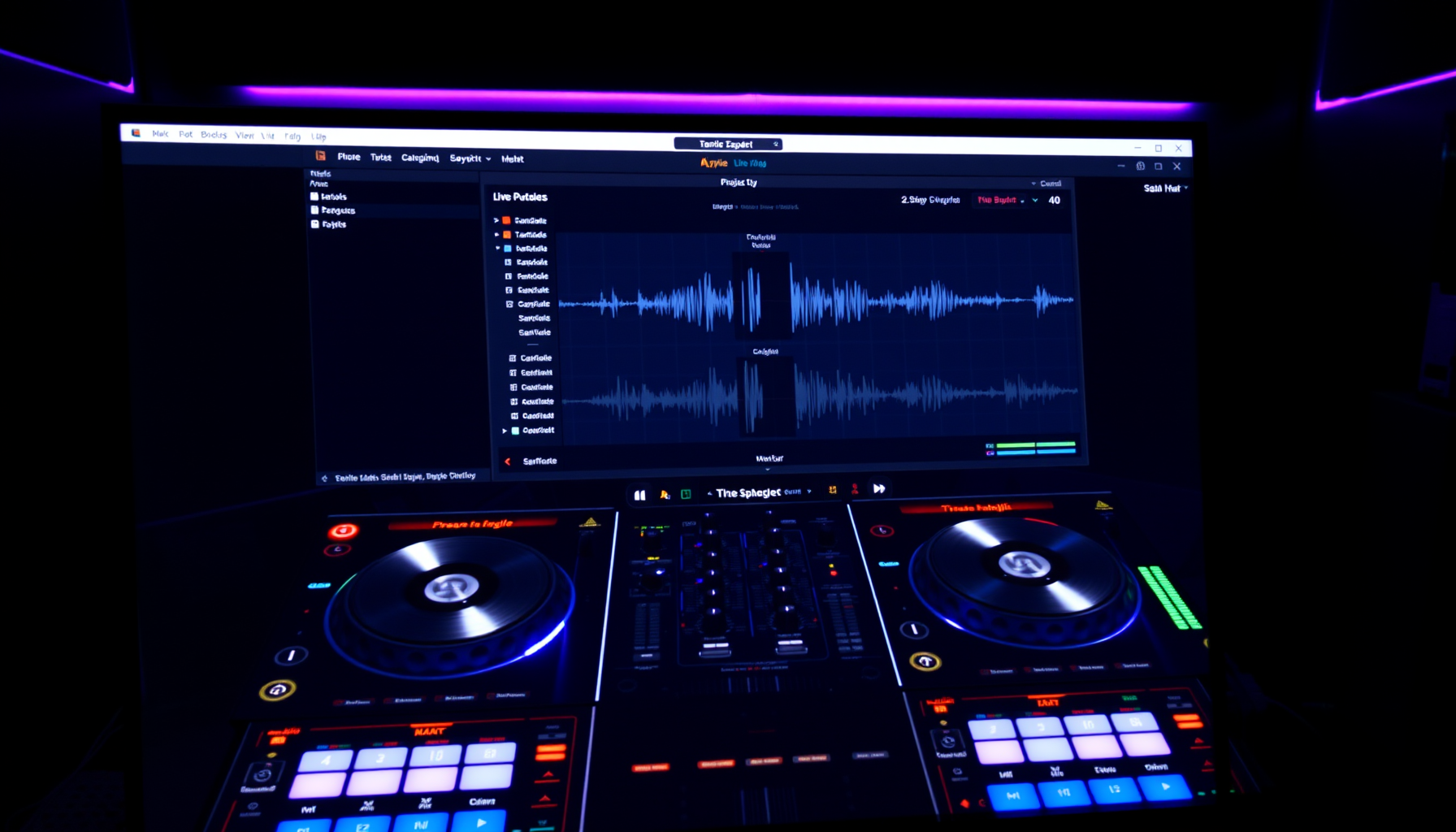
The Complete Guide
Mixxx: Free DJ Software with
Live Streaming and Auto DJ
Mixxx is free, open-source DJ software that can broadcast live to Shoutcast and Icecast servers and run basic automated playlists. It is not a full playout system — but for DJs who also want to stream, it is the most capable free option available.
Mixxx is designed for live DJ performance. Its Auto DJ feature can run automated playlists, and it can stream directly to an internet radio server — but it lacks the scheduling depth, rotation rules, event triggering, and reliability features of dedicated playout software like PlayoutONE, SAM Broadcaster Pro, or RadioDJ. If you want a fully automated 24/7 station, those tools are better suited. Mixxx shines for live DJ shows with streaming built in at zero cost.
What Is Mixxx?
Mixxx is a free, open-source DJ application available for Windows, macOS, and Linux. Developed by a global community of contributors, it has been in active development since 2001 and is used by hobbyist DJs, mobile DJs, club DJs, and internet radio presenters worldwide.
For internet radio, Mixxx is notable because it includes native broadcasting to Shoutcast and Icecast servers — no separate encoder needed. You can perform a live DJ show and stream it to your listeners directly from within Mixxx.
Mixxx also includes an Auto DJ mode that plays tracks from a queue automatically, making it usable as a basic automated station when you are not behind the decks. It will not replace a dedicated playout system for serious 24/7 broadcasting, but for a smaller station or occasional automated fill between live shows, it is a workable solution.
What Mixxx Can Do
- Two and four deck mixing — mix up to four tracks simultaneously with full pitch and tempo control
- Built-in streaming encoder — broadcast directly to Shoutcast v1, Shoutcast v2, and Icecast servers
- Auto DJ — automatically play tracks from a queue with crossfading between them
- Effects rack — apply EQ, reverb, flanger, and other effects in real time
- BPM detection and sync — automatic tempo detection and one-click beat sync between decks
- Key detection — harmonic mixing support to keep mixes in key
- Vinyl control (timecode) — use real turntables or CDJs to control Mixxx with timecode vinyl or CDs
- MIDI and HID controller support — works with most DJ controllers out of the box
- Waveform display — scrolling waveforms for visual cueing and beatmatching
- Hot cues and loops — set and trigger cue points and loops during performance
- Sampler decks — trigger samples and loops independently from the main mix
- Metadata output — sends now-playing track information to your stream
What Mixxx Cannot Do (Compared to Playout Software)
- No music rotation rules (artist separation, title separation, category weighting)
- No event scheduler — you cannot trigger specific tracks or actions at set times
- No cart wall for jingles and station IDs
- No automatic library management or database-driven scheduling
- No built-in request system
- Auto DJ is queue-based only — tracks must be manually added to the queue or it plays from a playlist in order
- Not designed for 24/7 unattended operation
Installing Mixxx
- Go to mixxx.org and click Download
- Choose the Windows installer (or macOS/Linux package if applicable)
- Run the installer and follow the on-screen steps — no additional dependencies are required
- Launch Mixxx — on first run it will ask you to point it at your music library folder
- Browse to your music folder, click OK, and Mixxx will scan and import your tracks
Setting Up Your Music Library
- Go to Preferences → Library and add any additional music folders you want Mixxx to scan
- In the main window, click the Library panel on the left to browse your imported tracks
- Mixxx reads ID3 tags automatically — tracks show with their artist, title, BPM, and key if that information is in the file
- You can create Playlists and Crates to organise your music — crates are like folders, playlists are ordered track lists
- Right-click any track and choose Analyse Track to run BPM and key detection if Mixxx has not done it automatically
Configuring the Built-In Streaming Encoder
This is what makes Mixxx useful for internet radio — broadcasting is built in and requires no third-party encoder.
- Go to Preferences → Live Broadcasting
- Set the Type to match your server: Icecast 2, Shoutcast 1, or Shoutcast 2
- Enter your server details:
- Host — your streaming server’s IP address or hostname
- Port — typically 8000 for Icecast, 8000 or 9000 for Shoutcast
- Mount — the stream mount point (Icecast only, e.g.
/stream) - Login and Password — your streaming server credentials
- Set your Bitrate (128 kbps MP3 is standard for most internet radio stations) and Format
- Enter your stream name, description, and website URL — these appear in stream directories
- Click OK to save
- In the main Mixxx window, click the broadcast icon (antenna symbol) to connect to your server and start streaming
- Verify your stream is working by opening your stream URL in a media player or browser
Using Auto DJ for Automated Broadcasting
Auto DJ is Mixxx’s basic automation mode. It crossfades between tracks in a queue automatically, allowing hands-free playback.
- Open the Auto DJ panel from the left sidebar
- Drag tracks, playlists, or crates into the Auto DJ queue
- Set the crossfade time — how many seconds before a track ends that the next track starts fading in
- Click Enable Auto DJ — Mixxx will begin playing through the queue and crossfading automatically
- Add more tracks to the queue at any time — Mixxx will work through them in order
Important limitation: Auto DJ plays tracks in queue order. It does not shuffle intelligently, enforce rotation rules, or manage categories. For a more polished automated sound, you will need to curate the queue manually or use a dedicated playout system.
Setting Up Your Audio Hardware
Mixxx’s audio routing needs to be configured to match your setup before you start performing.
- Go to Preferences → Sound Hardware
- Set your Master Output — this is what gets sent to your streaming encoder and to your speakers or headphone amp
- Set your Headphone Output — this lets you cue and preview tracks in headphones without the audience hearing them
- If you are using a DJ controller with a built-in audio interface, select it as both the master and headphone device
- Click Apply and test audio playback before going live
MIDI Controller Setup
Mixxx works with most DJ controllers without driver installation on Windows — it communicates with controllers directly via MIDI or HID.
- Connect your controller via USB before launching Mixxx
- Go to Preferences → Controllers
- Select your controller from the list — if Mixxx has a built-in mapping for it, it will be shown in the preset dropdown
- Select the appropriate preset and click Enable
- If no preset exists for your controller, Mixxx has a MIDI learning wizard — click Learning Wizard and follow the prompts to map each control manually
Microphone Setup for Radio Presenting
If you are using Mixxx for a live radio show with presenting, you need to bring your microphone into the mix.
- Go to Preferences → Sound Hardware and set your microphone input to your audio interface or USB mic
- In the main window, enable the Microphone toggle in the toolbar
- Set your mic gain using the microphone knob — keep levels in the green, peaking occasionally into yellow
- Enable Talkover — this ducks the music automatically when you speak, so your voice cuts through cleanly
- Set the talkover ducking level in Preferences to taste — a reduction of around 12–18dB works well for most radio applications
Now Playing and Metadata
Mixxx sends the current track title and artist to your stream automatically when broadcasting is enabled — no additional configuration is needed for basic now-playing metadata on Shoutcast and Icecast.
For more advanced metadata display on your website — such as a now-playing widget — you can use the Now Playing file output option:
- Go to Preferences → Live Broadcasting
- Enable Enable ReplayGain if you want consistent loudness across tracks
- Some third-party Mixxx scripts and skins can output now-playing information to a local file or URL that your website widget can read — check the Mixxx community forum at mixxx.discourse.group for current options
Tips for Better Sounding Streams
- Normalise your library — use Mixxx’s ReplayGain analysis to level your tracks before streaming. Inconsistent loudness is the most common complaint about automated internet radio streams.
- Use a consistent bitrate — 128 kbps MP3 is the sweet spot for most internet radio stations. Higher bitrates use more bandwidth without a proportional quality improvement for most listeners.
- Set crossfade correctly — a 4–6 second crossfade sounds natural for most music. Very short crossfades sound abrupt; very long ones sound like two songs playing at once.
- Keep a buffer in your Auto DJ queue — if the queue empties, Mixxx stops playing. Always keep at least an hour of tracks queued if you are running automated.
- Test your stream before going live — open your stream URL in a separate media player and listen for a minute before announcing you are on air.
Mixxx vs Dedicated Playout Software: The Honest Comparison
Mixxx is excellent DJ software that happens to stream. Dedicated playout software is built from the ground up for automated broadcasting. Here is the honest breakdown:
- Use Mixxx if: you are primarily a DJ who wants to stream live shows, you are on a zero budget, or you want a simple automated playlist without complex scheduling
- Use RadioDJ if: you want free software purpose-built for 24/7 automated radio with proper rotation rules and scheduling
- Use PlayoutONE or SAM Broadcaster Pro if: you want the most professional automated station experience and are willing to pay for a licence
Many internet radio operators use Mixxx for their live shows and switch to a dedicated playout system for automated hours — getting the best of both tools.
Getting Help with Mixxx
- mixxx.org/support — the official documentation, covering every feature in detail
- mixxx.discourse.group — the community forum for questions, tips, and controller mappings
- The Mixxx GitHub — for bug reports and following development
Mixxx is entirely community-developed. If it serves you well, consider contributing to the project — whether through code, documentation, controller mappings, or a donation.
Guides for Other Playout Software
Looking at other options, or setting up more than one system? These guides cover the other major playout applications.
See all guides: stationadmin.com/guides