Version 1.0.1 — Station Admin
Festerhead sam is at the heart of modern radio broadcasting — this guide covers everything you need to know.
FesterHead's SAM Plugin connects WordPress to your SAM Broadcaster Pro database and adds three shortcodes: a public Now Playing panel, an admin Now Playing view, and a full playlist browser with song request support. Originally developed by Steve Kunitzer (FesterHead), this version has been rewritten for PHP 8.x, WordPress 7, and MariaDB 12.
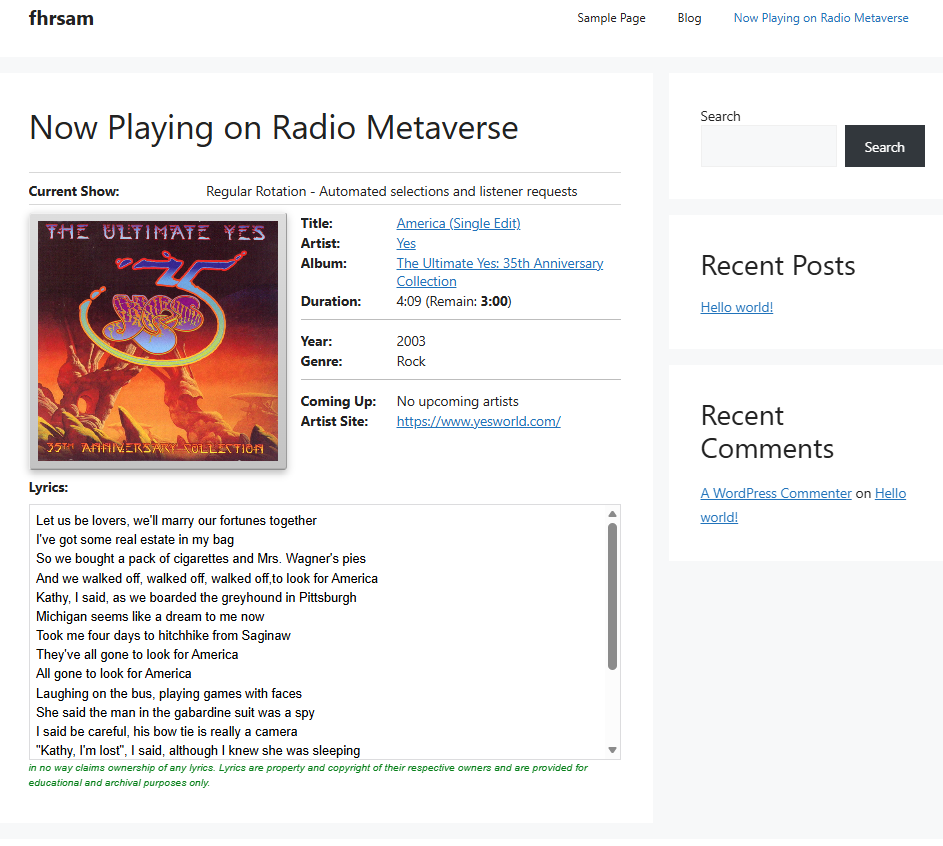
Table of Contents
Festerhead sam: Jump to section
- Requirements
- Installation
- Settings
- Shortcodes
- SAM PAL Scripts
- Amazon Buy Links
- Upgrading from the old version
- Auto-Updates
- FAQ
- Support
Requirements
- WordPress 5.0 or later (tested to WordPress 7.0)
- PHP 7.4 or later — tested on PHP 7.x and 8.x; the plugin detects the version and adjusts automatically
- SAM Broadcaster Pro with its MySQL or MariaDB database accessible from your WordPress hosting server
- MariaDB 10+ or MySQL 8.0+ (tested to MariaDB 12)
- The PHP
pdo_mysqlextension — available on virtually all shared hosts
Installation
- Download the plugin zip from the Downloads page.
- In your WordPress admin go to Plugins → Add New → Upload Plugin and upload the zip.
- Click Activate.
- Go to Settings → FesterHead SAM to enter your database credentials and configure the plugin.
Settings
Find all settings under Settings → FesterHead SAM.
Database
| Field | Notes |
|---|---|
| Database server | Hostname or IP of your SAM Broadcaster database server. Use localhost or 127.0.0.1 if SAM is on the same machine as WordPress. |
| Database schema | The name of the SAM Broadcaster database (usually sam). |
| Username / Password | The credentials SAM Broadcaster uses to connect to its own database. |
SAM Web Server
Enter your SAM Broadcaster web server host and port if you use the song request feature. These are the same values you set in SAM Broadcaster under Options → Web Server.
Song Requests
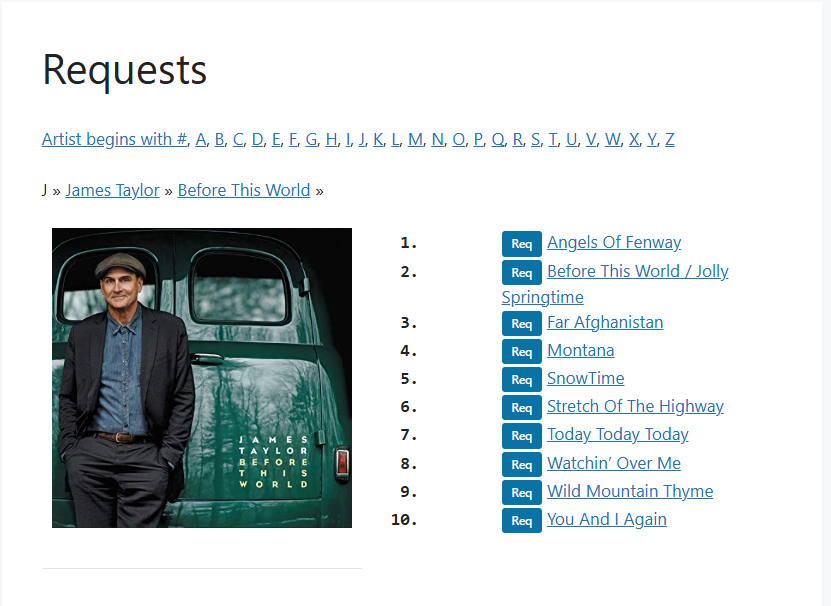
Enable or disable song requests, choose which user role can request songs, and set the requester ID. When enabled, a Request button appears next to each song in the Now Playing and playlist views.
Cover Art
If SAM Broadcaster stores album art locally, enter the server directory path and the public URL to that folder. The plugin displays the image for each song if a matching file is found.
Shortcodes
[fhrsamNowPlaying]
Add this shortcode to any page to display the Now Playing panel to all visitors. Shows: song title, artist, album, composer (if present), duration with live countdown, year, genre, Coming Up next, current show name, album artwork, and lyrics.
[fhrsamPlaylist]
Displays the full playlist browser. Visitors can browse by title, artist, or album and submit song requests. The request button appears only when requests are enabled in Settings and the visitor meets the configured role requirement.
SAM PAL Scripts
The plugin download includes a pals/ folder with SAM Broadcaster PAL (Playlist Automation Language) scripts. Run these once from SAM Broadcaster's PAL editor before using the plugin.
| Script | What it does |
|---|---|
fhr_albumid.pal | Adds the fhr_albumid column — links songs to album artwork. |
fhr_artistid.pal | Adds the fhr_artistid column — used by the playlist browser for artist-grouped views. |
fhr_condition_database.pal | Checks your database structure and reports missing columns or views. |
fhr_restore_database.pal | Recreates the required views if they have been dropped. |
fhr_picture.pal | Scans your SAM library and populates album art filenames in the database. |
See the included manual.pdf for step-by-step PAL script instructions.
Amazon Buy Links
The plugin can display an Amazon buy link next to each song. This requires an Amazon Product Advertising API v5 account.
- Sign in to Amazon Associates and apply for Product Advertising API access.
- Once approved go to Tools → Product Advertising API and generate your Access Key and Secret Key.
- In plugin settings enter your Associate tag, Access key, Secret key, and choose your Amazon region.
- Enable the Show Amazon buy link checkbox.
The plugin caches each ASIN result for 7 days to minimise API calls. If API credentials are not configured, a generic Amazon search link is shown instead.
Upgrading from the old version
If you used the original FesterHead plugin (v0.1.0), update your shortcode names on any existing pages after upgrading.
| Old shortcode | New shortcode |
|---|---|
[rm_samNowPlaying] | [fhrsamNowPlaying] |
[rm_samPlaylist] | [fhrsamPlaylist] |
Settings are stored under new option keys (fhrsam_*). After upgrading, go to Settings → FesterHead SAM and re-enter your database credentials.
Auto-Updates
The plugin checks for updates every 12 hours. When a new version is released, you will see the update notice in Dashboard → Updates exactly as you would for any WordPress.org plugin.
FAQ
Does this work with full site editor (block) themes?
Yes. Shortcodes work in both classic and FSE/block themes. For best results place them on a full-width page template with no sidebar.
Will it modify my SAM Broadcaster database?
Only by adding required columns and views (via the PAL scripts) and reading data for display. It never deletes songs or modifies data you did not ask it to change.
What if my database is on a different server from WordPress?
Enter the SAM machine's IP address as the database server in Settings. You may need to allow the WordPress server's IP in your MySQL user permissions and firewall rules.
What happened to the original festerhead.com site?
The original FesterHead website is no longer active. This updated version is maintained by Station Admin and distributed free under the same GNU GPL v3 licence as the original.
Support
For help, questions, or bug reports visit stationadmin.com. Include your PHP version, WordPress version, SAM Broadcaster version, and MariaDB/MySQL version when reporting an issue.